How to Use the Quiz Generator
1. Adding PDFs & Quiz Generation
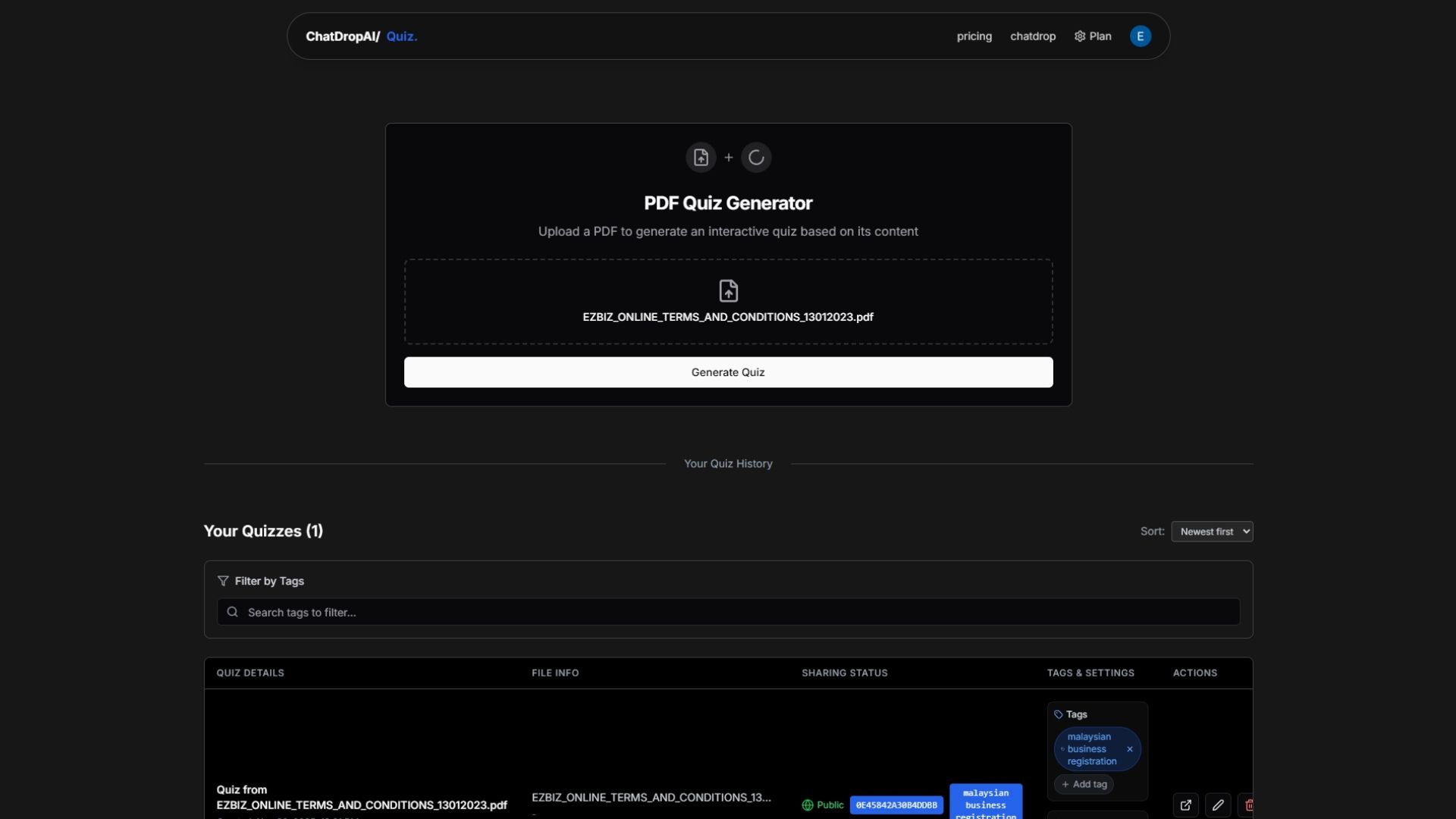
Upload your PDF document to the quiz generator and click the Generate Quiz button to begin the AI-powered quiz creation process.
- Maximum file size: 30 MB
- Generation timeout: 60 seconds (exceeding this will cause generation to fail)
- Recommended document length: Up to 50 pages for optimal results
Important: Full Book Limitations
While the system accepts files up to 30 MB, entire books (100+ pages) may fail to generate even if they're within the file size limit. This is due to:
- AI processing limits for very long documents
- Generation timeout after 5 minutes
- Context window constraints
💡 Recommended: Upload individual chapters or sections (20-50 pages) instead of entire books for best results.
💡 Supported PDF Types
Both text-based and image-based PDFs are supported. We're currently working on enhanced image-based upload support for an improved user experience.
1.1 Quiz Tags
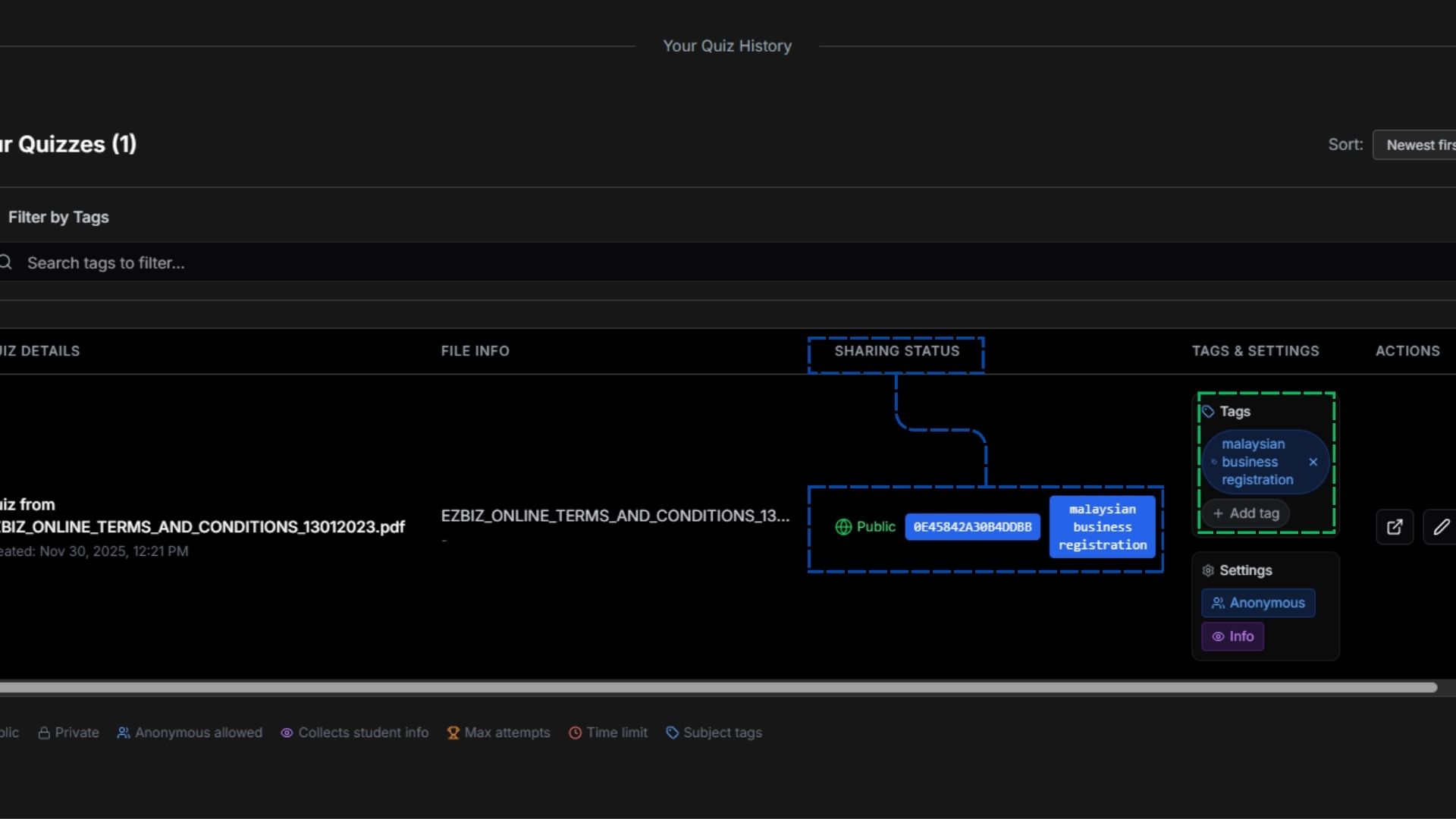
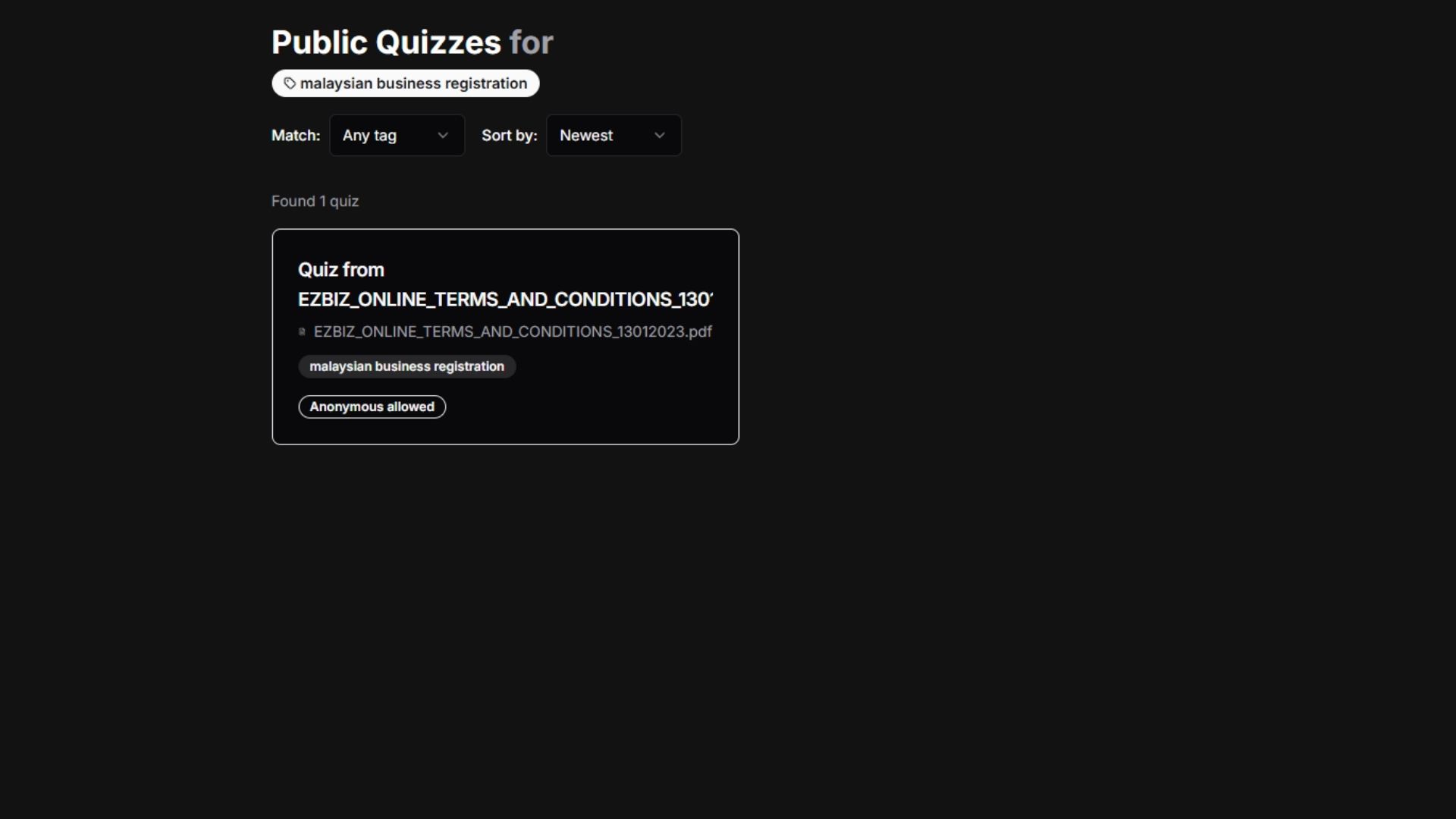
Users have the ability to tag each quiz. Quizzes that have the same tag will aggregate into a public page for students or anyone to access them.
🔗 Auto-Generated Links
The Homepage dashboard has auto-generated links for both the individual quiz and tags, making it easy to share and organize your quizzes.
2. Quiz Dashboard Overview
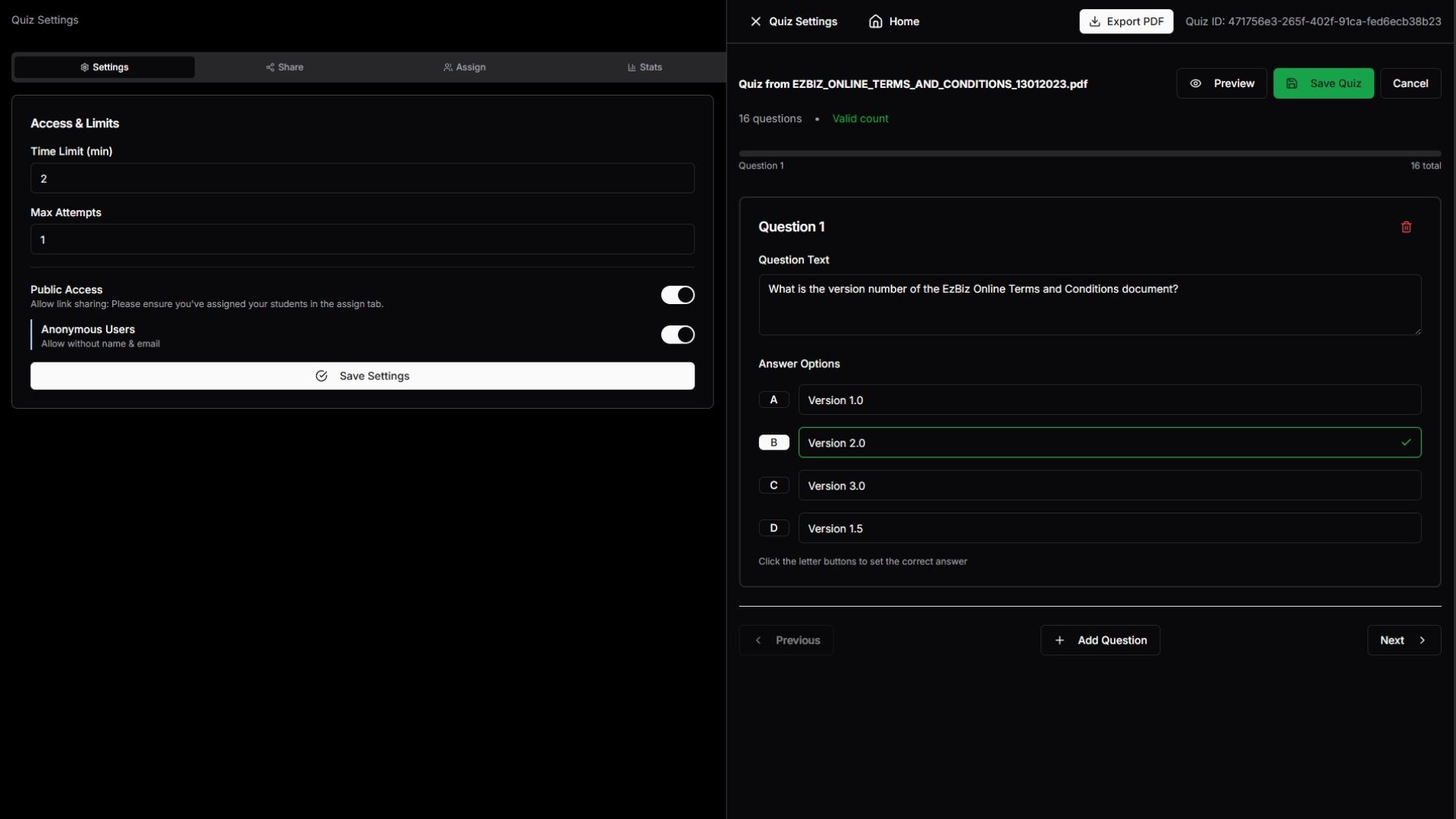
After successful quiz generation, you'll be redirected to the Quiz Dashboard, which features two main windows:
- Quiz Settings - Configure time limits, attempts, and access
- Quiz Editor - Modify and manage quiz content
2.1 Quiz Settings Tab
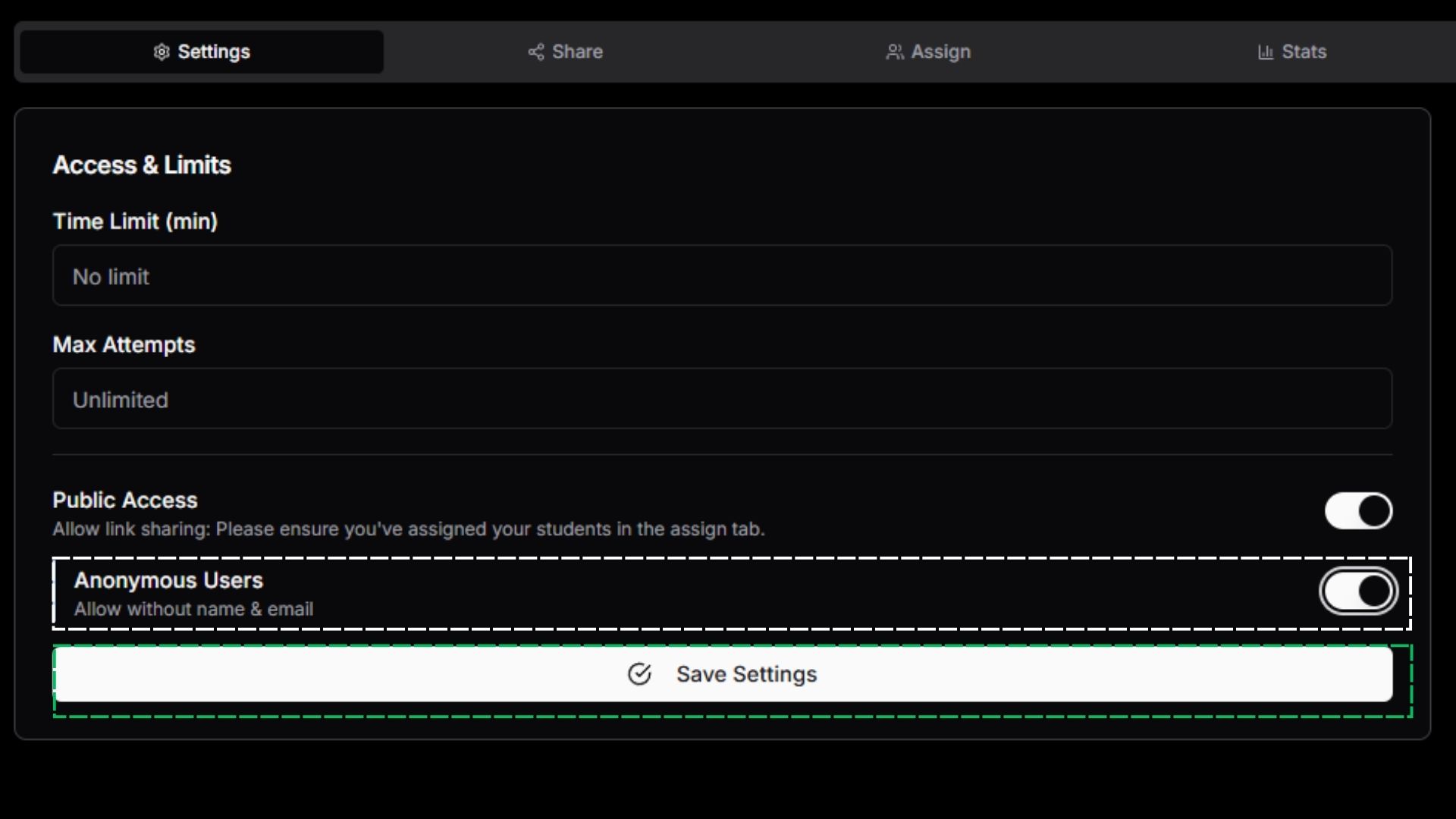
Time Limit (Minutes)
Set a time limit for students to complete the quiz. Default: Unlimited
Maximum Attempts
Define how many times students can take the quiz. Default: Unlimited
Public Access
Toggle to enable anonymous access to the quiz. Default: Enabled (anonymous users can take the quiz)
Important: How Anonymous Access Works
In order to track the results of anonymous users, a randomized user profile is created for each anonymous quiz attempt. This allows the system to record scores and completion rates even without formal student accounts. Which will affect your ability to assign quizzes to specific students in the Assignment tab. You will need to manually get rid of these anonymous users from the student list if you wish to keep it clean.
If you disable Public Access, only students you assign via the Assignment tab will be able to take the quiz.
2.1.1 Quiz Dashboard Sharing & Statistics Tab
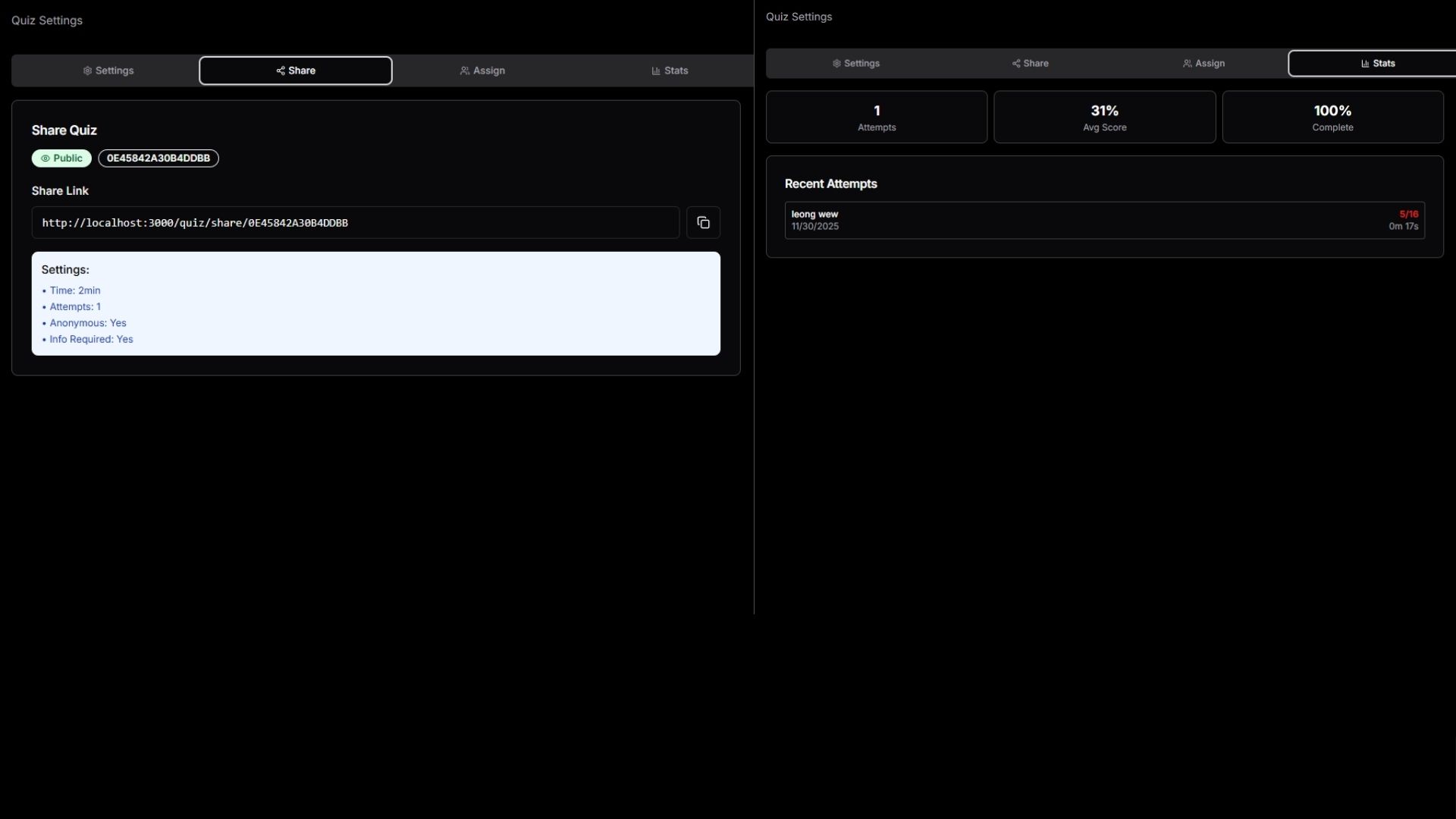
Upon saving your quiz settings, the Share tab will generate a link for the user to share the quiz with the student. You can view the average score and completion rate of each student.
Share Link Generation
Automatically generates a unique shareable link after saving quiz settings
Student Statistics
Track average scores and completion rates for each student who takes the quiz
2.2 Student Assignment Tab
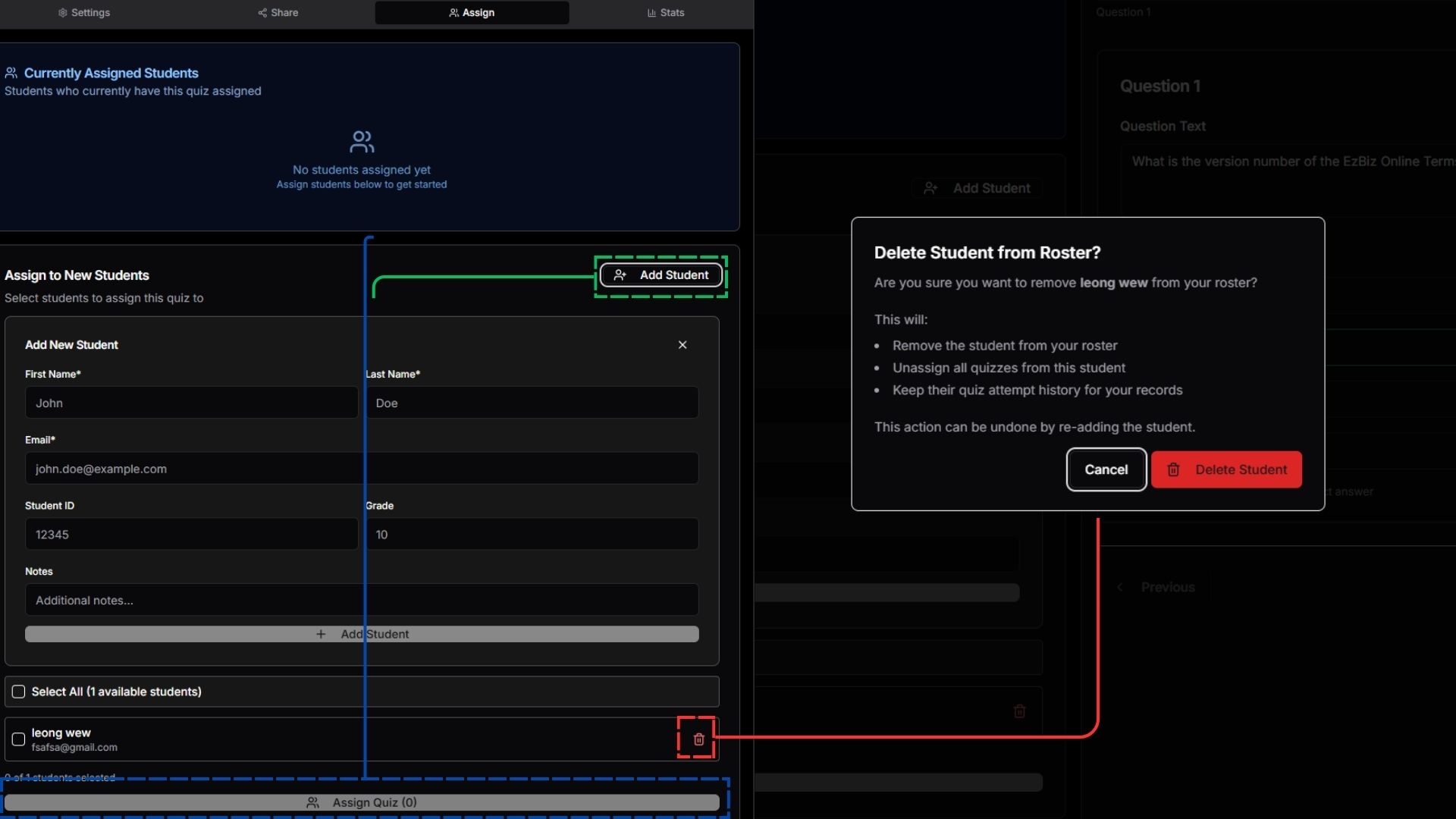
The Assignment tab allows you to manage student access to your quiz. You can add students, assign or unassign them, and manage their quiz participation.
Add Student
Enter the student's first name, last name, and create an email for quiz access
Delete Student
Permanently removes a student from the roster and deletes all their quiz history
Assign/Unassign
Manage which students are assigned to this specific quiz
💡 Important Note
You must create a dummy email for each student. This email is required for students to access their assigned quizzes.
3. Quiz Editor Window
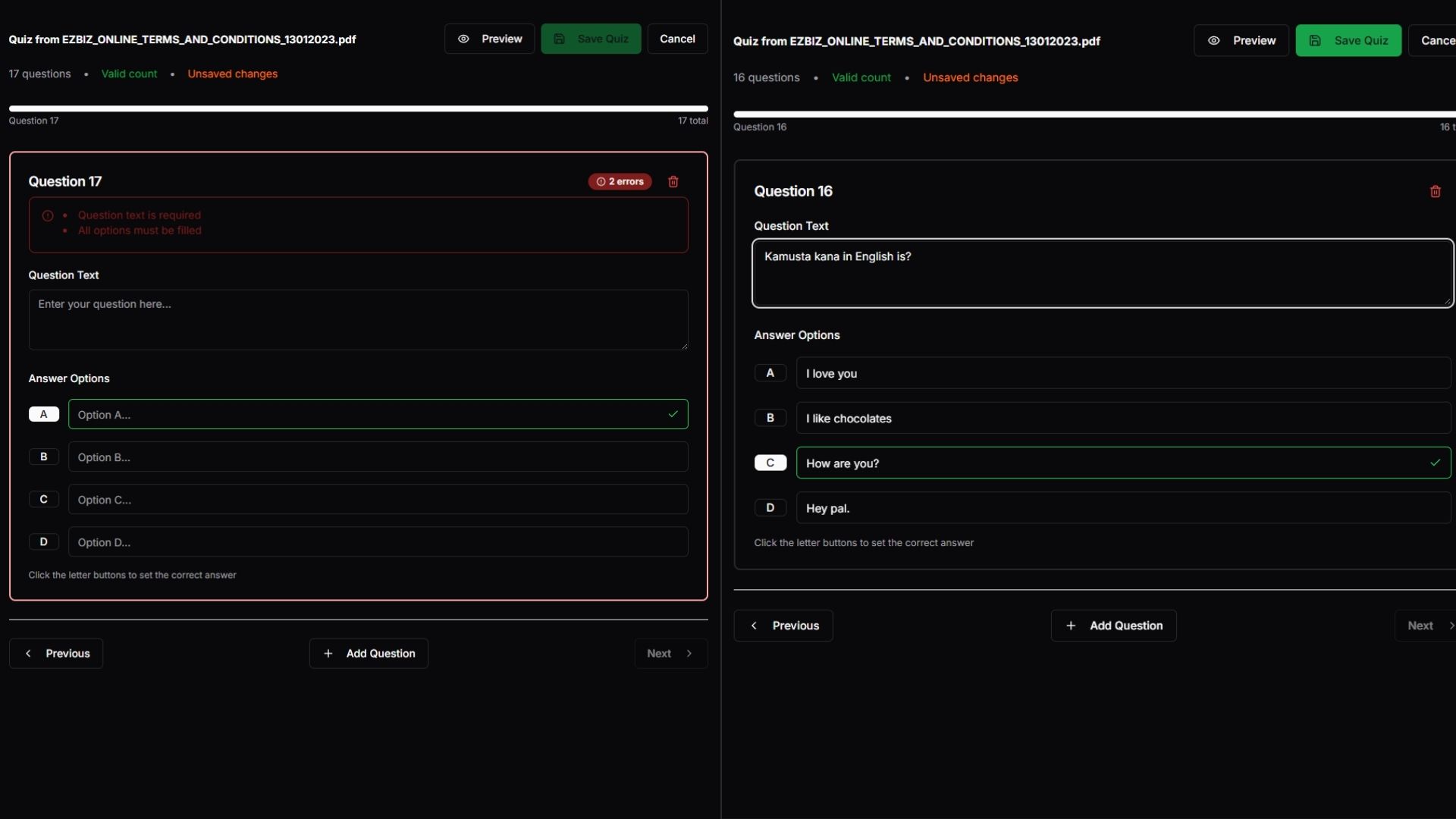
The Quiz Editor allows you to modify questions, create new ones, or export your entire quiz as a PDF.
Editing & Adding Questions
- •Hover over any question field and click to edit the text
- •Click the letter buttons (A, B, C, D) to mark the correct answer
Saving Changes
After making modifications, click the Save Quiz button to save the current state of your quiz.
Export to PDF
Use the export feature to download your quiz as a PDF file for printing or offline distribution.